
01. Installation with NFS Share
To run a PeerTube instance you don't need that many resources, however if you want to host lots of videos then obviously you need lots of storage. We recommend to install PeerTube as a dedicated Docker VM if you are planning to host is for multiple people, just to keep things simple and isolated. If you are only hosting it for yourself and family then you can simply run it in your existing Docker VM
Storage
CPU
4 CPU
1. Create a new docker VM by using the Docker VM Proxmox Helper Script. If you don't know how to do this check it out at our HomeLab Instance.
2. Enter the VM through SSH
3. Then as for any new VM that is created you should update the machine by using
sudo apt update && sudo apt upgrade -y4. Then after that we will again add your username to the sudo and docker group with
usermod -aG sudo <username>
usermod -aG docker <username>
5. Then log out of your SSH session and log back in for the changes to take effect
6. Now, that is all set and done we also recommend to create a new Arcane Dashboard for managing the resources and updates of your PeerTube instance. If you don't know how to do this check out our Arcane inside our HomeLab instance
7. Arcane stores its projects by default inside /opt/docker/projects. Therefore we create the folder projects and inside of it the PeerTub project folder Peertube.
8.
9. Ownership Docker compose file: Now, you can just run Peertube with root and you don't need to change any of the ownership in the configuration file. Howerver, for safety reasons it is recommended to run it as your user and not as root. On top of that if you are using an NFS mount for all the video storage it is recommended to use the same Group ID and User ID for everything. To do this you can just add
user: "1000:1000" or any other group and user ID you have assigned to it.
10. Then if you make all the different folders inside the Peertube directory folder owned by your user and group you simply hit the command
sudo chown username:groupname -R *11. Then if your username is dpasn and groupname is dpasn it should look like this ;)
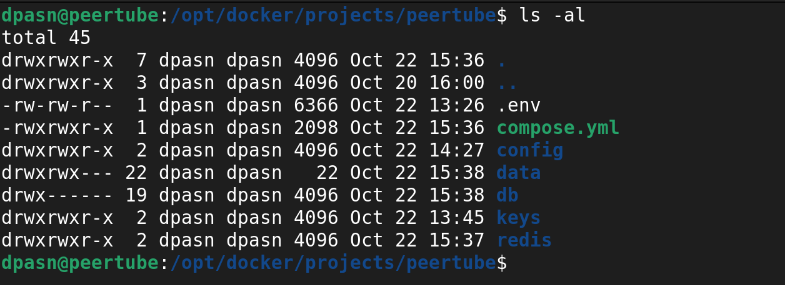
12. Finally, we also want to give the right permisions to all the folders. That only your user and group can interact with the folders and files. As usual we will do that with
sudo chmod 775 -R *Docker Compose File
13.