🛠️ Configuration
01. Discover Page
The first thing you might realize when you start up your Peertube instance is that the Discover Page is completely empty. Don't you worry, you did install it correctly ;) By default
Peertube only shows videos on the Discover page if a channel/category/tag has a minimum of 6 videos
Therefore, upload a minimum of 6 videos and you are good to go ;)
01. First Startup
After your
03. Force Dark Mode
By default Peertube adapts its dark or light look to the default of the device it is accessing. If however you want to force dark mode regardless of which device is accessing it then you can do so in Settings
Go to Settings > Customization > Select Dark (Brown)
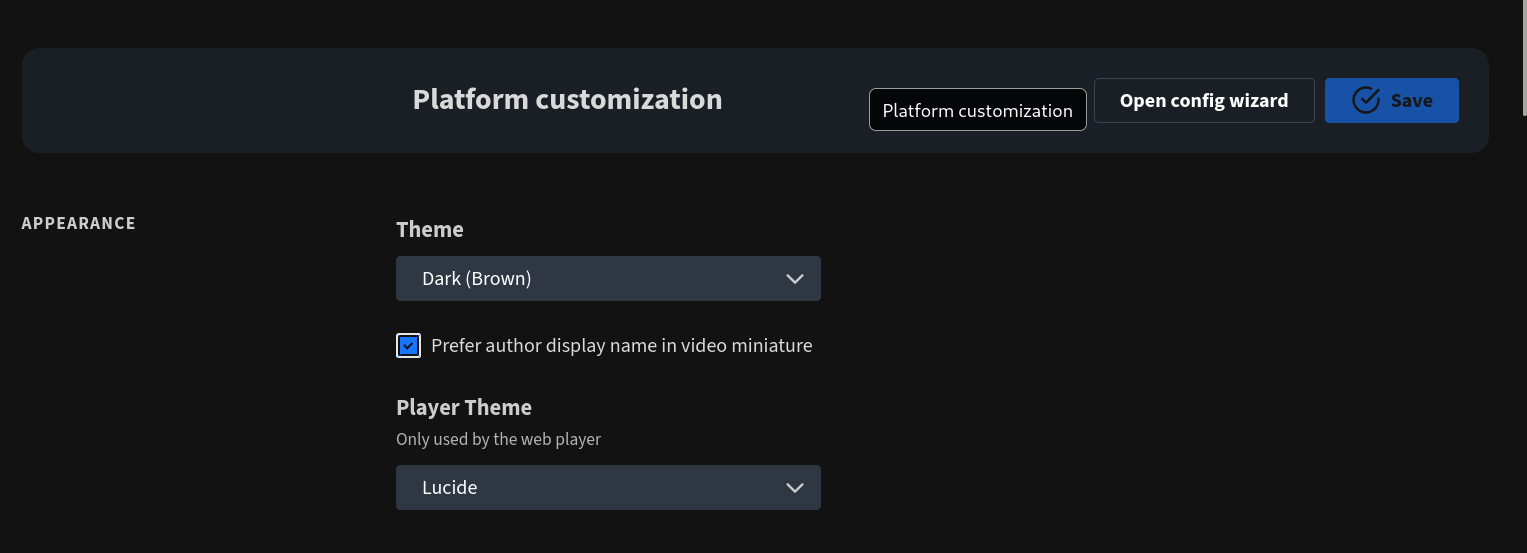
Then simply hit save! From now on all devices will access your website in Dark Mode ;)
04. User Management
💬 Captions
PeerTube also allows captions to be generated for your videos. It is even that awesome that it detects the spoken language and then tries to put captions underneath it. To allow captions on your videos go to Settings > General > Scroll down to Enable Transcription and enable it
- Enable Transcription (Automatically create subtitles for uploaded/imported Videos)
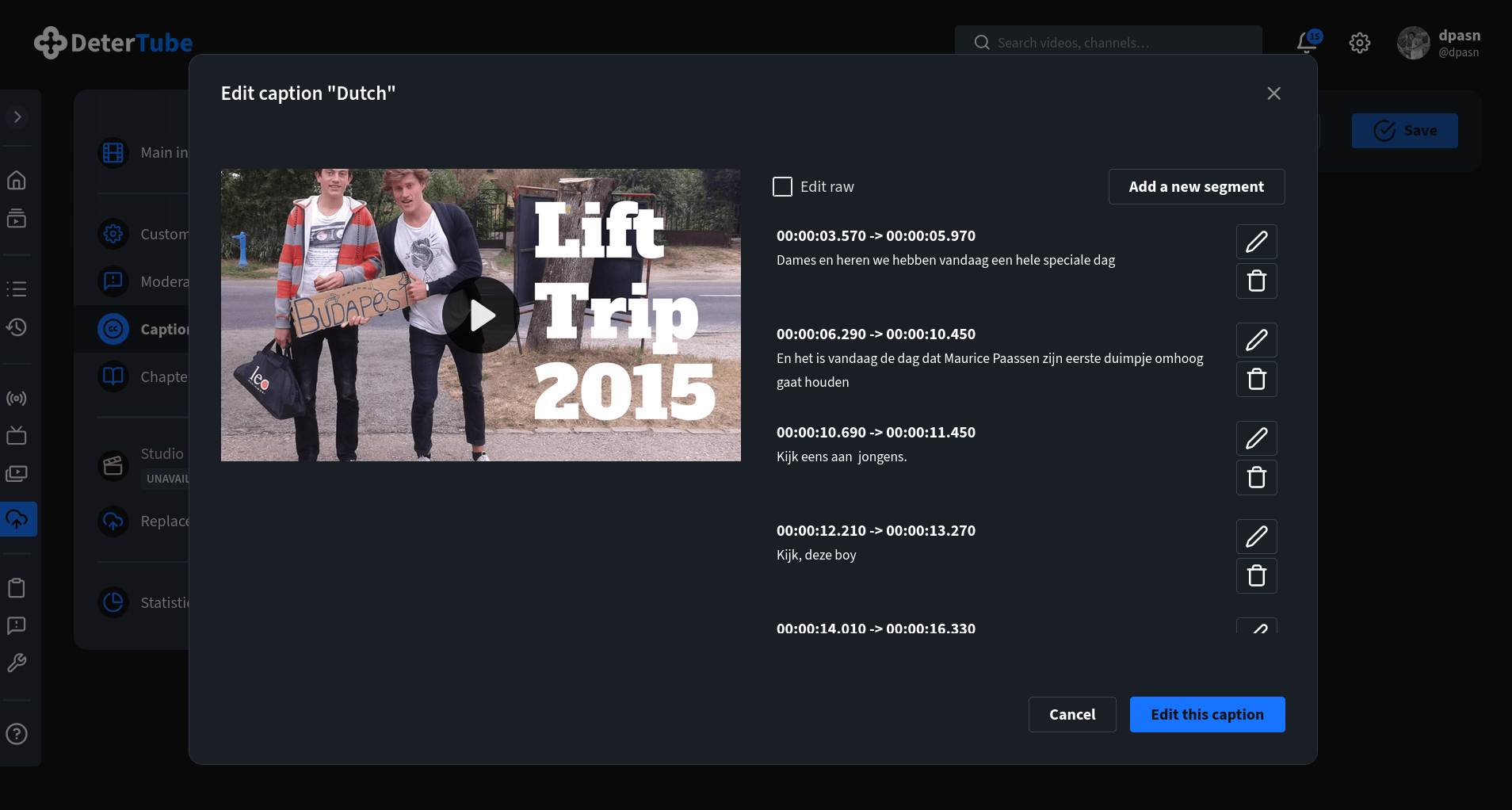
Now, as stated the captions are not always correct and hence it is important to check them. The great thing however, is that even though the translation might be wrong it does catch the moment when you talk. This make it really simple and adjust a section to the correct translation
- Go to the video you want to edit the captions off
- Click on the ... dots and select Manage
- Then click on the menu bar on captions
- Click on Edit Caption
- This gives you then a screen like the following on which you can Edit each line ;)
Happy Caption Editing !!!! 💬💬💬💬💬💬💬💬💬💬💬💬💬💬💬💬💬💬💬💬💬💬💬💬💬